01 / OPERATION LOGPreview first.
Preview first.
Restore after.
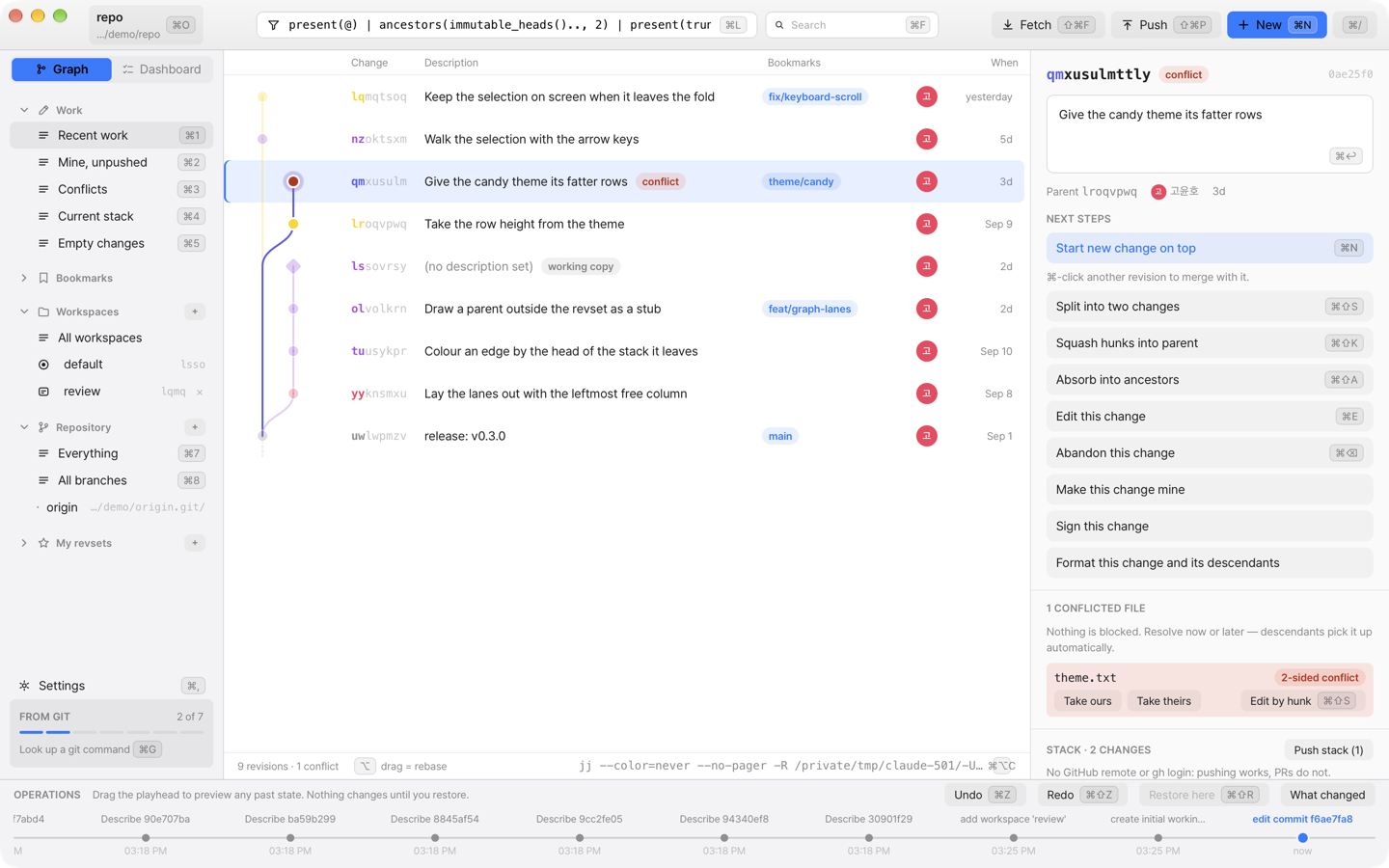
Move through the operation timeline to inspect an earlier repository state. Browsing history does not change it; restoring does.
View full-size screenshot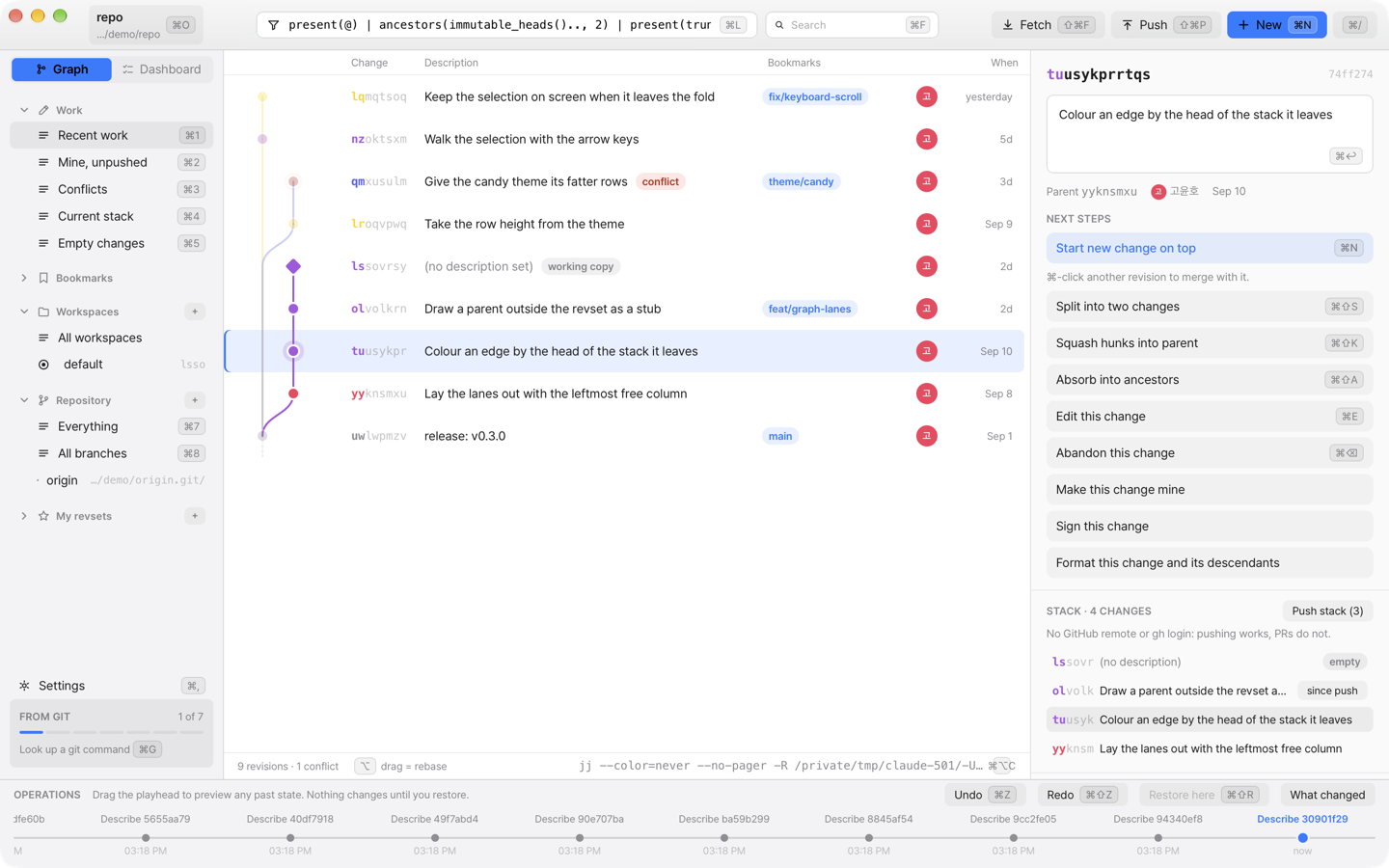
Preview a past repository state before you restore it.
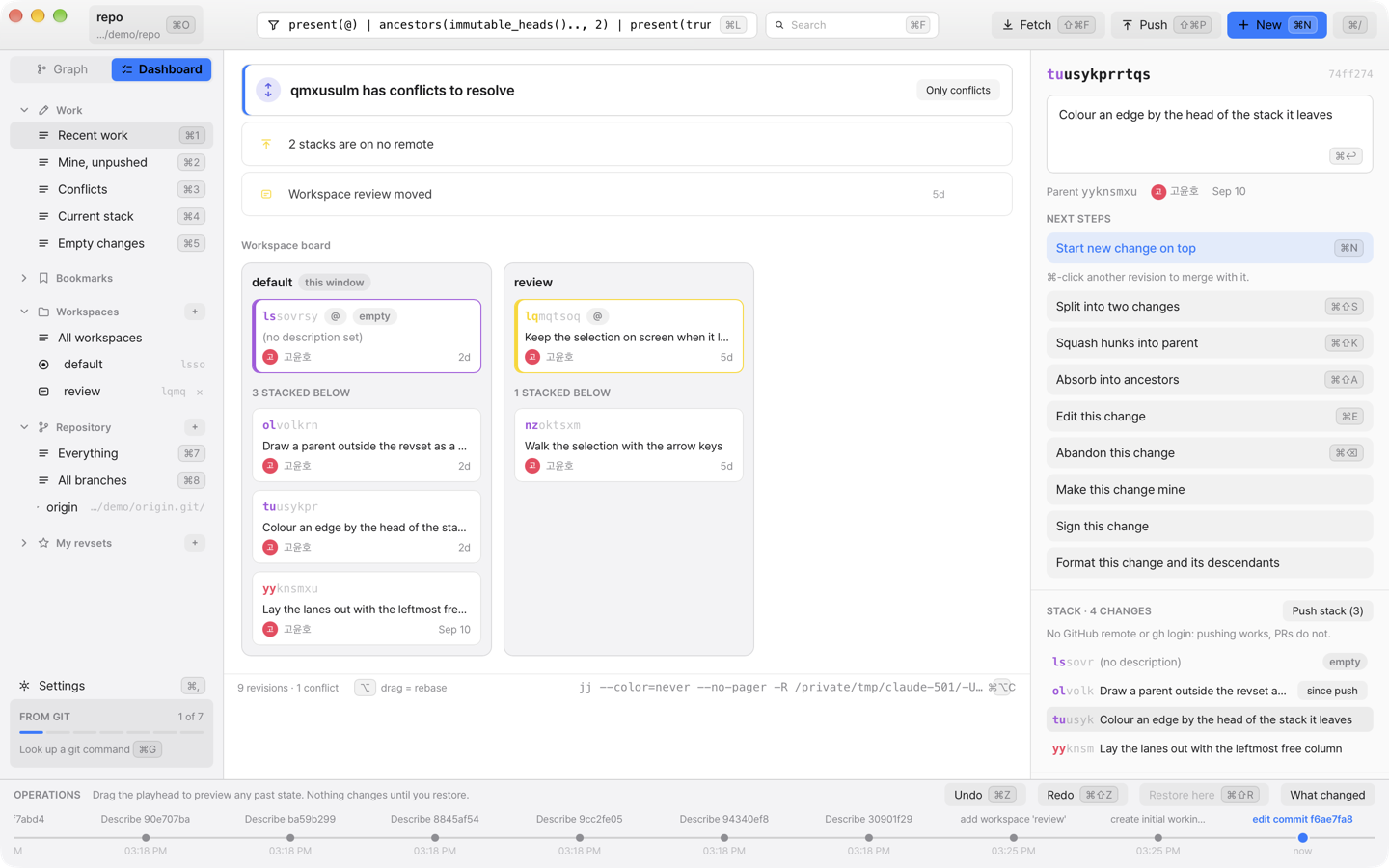
Inspect commit stacks and review changes across parallel workspaces.
Apple Silicon · Bundled jj · 7 languages, including Korean
App screenshots, not an interactive repository. Select a view to explore.
Move through the operation timeline to inspect an earlier repository state. Browsing history does not change it; restoring does.
View full-size screenshotjj provides the version-control model. Ukemi adds a desktop interface for inspecting and acting on it.
| Task | Typical Git workflow | What jj provides | What Ukemi shows |
|---|---|---|---|
| Undo an operation | Use reflog and other recovery commands to find earlier commits or refs. | An operation log records repository updates and supports undo and restore. | A timeline to preview an earlier state before restoring it. |
| Edit a commit stack | Use amend and rebase to update a commit and rearrange later commits. | Rewriting a commit automatically rebases its descendants. | A highlighted stack and actions to split, squash, or edit a change. |
| Handle rebase conflicts | A typical rebase pauses at a conflict until it is resolved. | Conflicts can be recorded in commits so the rebase completes. | Marked conflicted changes, file comparison, and a hunk editor. |
| Work in parallel | Use Git worktrees to keep separate working directories. | Multiple workspaces share one repository. | A dashboard of workspace stacks and items needing attention. |
Git also supports recovery and parallel work. The difference is the model and how you interact with it, not that these tasks are impossible in Git. Read jj’s Git comparison
Not just a graph of commits.
Use the operation timeline, stack actions, and workspace dashboard to understand your repository.
The timeline shows earlier repository states without changing the current one. Inspect the graph before choosing to restore. This is repository history, not a backup of every file on your computer.
Select a change to highlight its stack. A diamond marks your working copy. Review the next actions and the stack you can push, right beside the graph.
In jj, the working copy is already a commit. In Ukemi, use split and squash actions to organize its changes instead of a staging area.
Compare stacks and conflicts across workspaces. When coding agents use separate jj workspaces, their repository changes appear here too—not their runtime or execution progress.
Jujutsu records conflicts in the change, so the rebase can complete. Compare both sides of the file and resolve the conflict in the hunk editor.
Choose your theme, fonts, and one of seven languages. Use keyboard shortcuts to keep familiar actions close at hand.
Open local repositories with the bundled jj. GitHub stack PRs use the gh CLI and your existing GitHub login.
You do not need to migrate your whole team to try jj with a Git-backed repository.
Use Homebrew or the public DMG. jj is bundled; a separate jj installation is not required for the app.
Install on macOSChoose a folder in the app or open it from the terminal. For a Git-only repository, review the in-app explanation before adding jj alongside Git.
ukemi ~/work/my-repoSelect a commit to see its stack. Explore the operation timeline to preview history, then return to the current state before making changes.
Yes, jj’s Git backend uses Git repositories and remotes. Your team can continue using Git. The app can offer to add jj alongside an existing Git repository; review what changes before accepting. Git compatibility has limitations.
No. It previews and restores recorded local repository states. It does not reverse remote server changes, recover deleted workspace folders, or back up every unsnapshotted file edit.
No. The dashboard shows repository changes in jj workspaces, including workspaces used by agents. It does not launch agents or report their runtime, token usage, or execution progress.
Published binaries target Apple Silicon macOS. jj is bundled, and GitHub stack PRs require gh CLI and GitHub authentication. Git hooks, submodules, and Git LFS are not supported by the bundled jj. Check release notes and jj’s compatibility documentation before using a repository that depends on them. jj Git compatibility
Ukemi’s own source is private and proprietary. Lawfully obtained binaries may be used for personal and internal business purposes under the application terms. The terms do not impose a new payment or subscription requirement. Third-party components retain their own licenses; legal documents below are in their original English.
Install with Homebrew, then open an existing jj workspace or a Git repository to get started.
Paste this command into your terminal.
brew install --cask yoonhoGo/tap/ukemiThe app is ad-hoc signed and not notarized by Apple. Homebrew removes the quarantine attribute, bypassing a macOS security check. Install only from the linked public distribution. For a blocked manual DMG installation, use System Settings → Privacy & Security → Open Anyway.
ukemi ~/work/my-repo